Open the deposit interface
- Log into SONAR
- Click Deposit a publication
If you don't see this button:
- You have no deposit rights yet. Ask your administrator to register you as a submitter.
- You are a moderator or an administrator. Deposit from the administration interface instead: Username > Administration, then Deposits > Deposit a publication.
Step 1: Upload your file(s)
SONAR accepts any file format: nothing is refused on the basis of its extension or its type. Before uploading, the form asks you to confirm that depositing the full text is compatible with the copyright agreement governing the publication.
Some formats age better than others. For text, PDF/A (.pdf), Unicode text (.txt) and XML (.xml) are the safest choices — see Recommended file formats, and check your institution's own guidelines.
SONAR never requires a file: a record can be deposited with metadata only. Such a record simply does not count as open access, and is left out by the open access facet in search results.
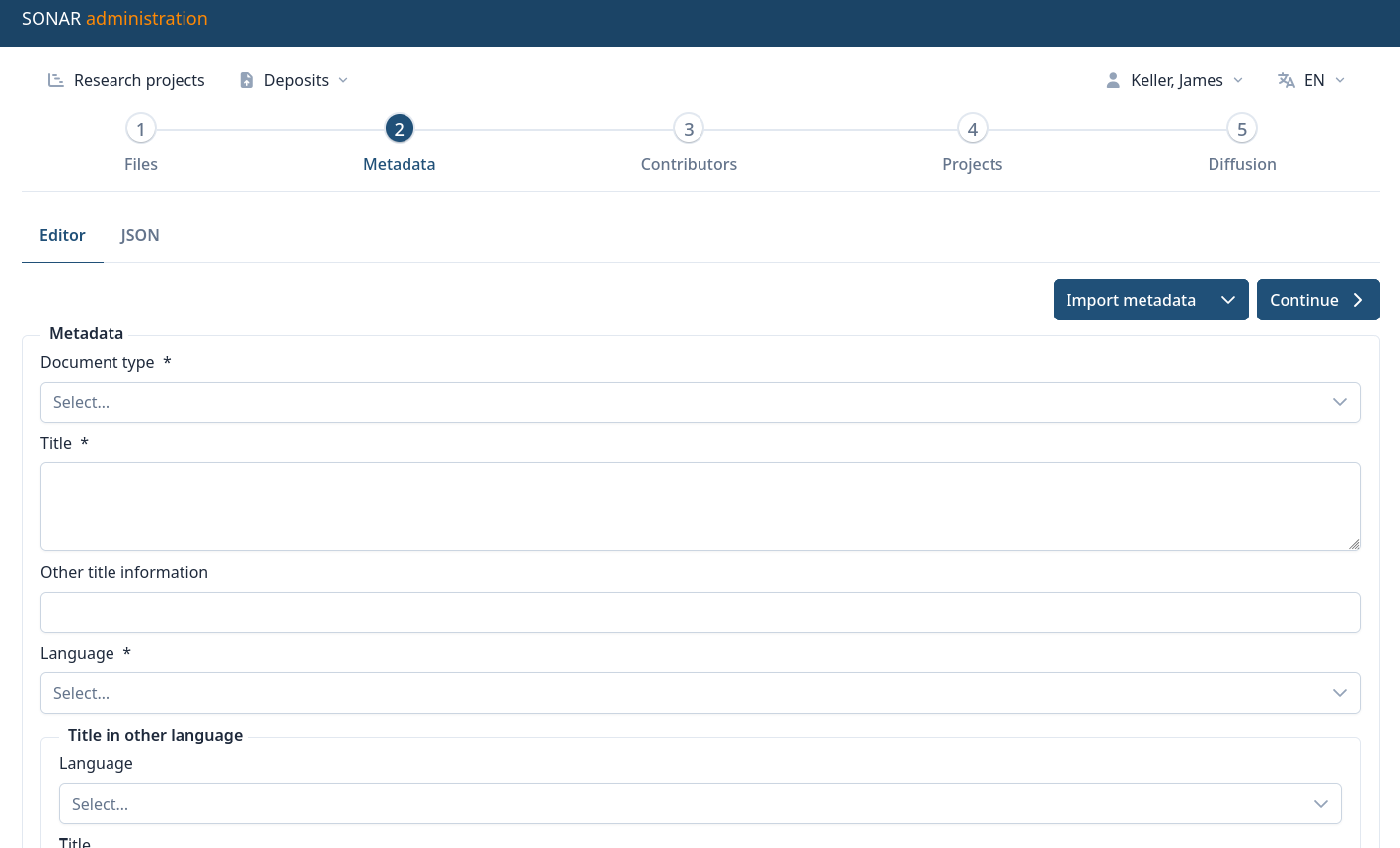
Step 2: Metadata
You can enter the metadata in three ways:
- Import it from a PDF uploaded in step 1
- Click on Import metadata > Analyze uploaded PDF
- SONAR fills in the title, abstract, authors and affiliations it can find. Accuracy depends on how the PDF was produced, so always check the result.
- Import the data from swisscovery
- Search your document by the chosen criteria.
- Searching by swisscovery ID (MARC 001) is the most reliable: it is the number at the end of a swisscovery permalink, …/alma
991142204049705501
- Enter the data manually
Step 3: Contributors
Check the authors and contributors, and correct whatever the import got wrong. Add an ORCID wherever you can: it is what tells apart two researchers with the same name.
If the publication has no contributor, remove the section and move on.
Step 4: Research projects
Link the publication to the research projects it came out of, so that it appears alongside the rest of their output. Either:
- Search for an existing project in your SONAR organisation
- Add a new project
Step 5: Diffusion
A moderator reviews your submission before it becomes public.
Before submitting, check two things:
- all the authors agree to the deposit
- publishing the document infringes no copyright, the publisher's in particular
A licence must also be chosen on this step: the form refuses the submission without one. Ask your library if you are unsure.
Depositing transfers no right to SONAR. The platform holds only the non-exclusive right to store your content, index it and make it available online. The terms of use that apply to readers are the ones your institution sets, through the fields Usage and access policy and Open access status.
What happens once you submit
The administrators of your organisation are notified, together with the moderators of your subdivision if you have one.
From that moment, you can no longer open or edit the deposit. You get it back only if a moderator asks for changes. You are emailed at every outcome: validated, changes requested or rejected.
Once validated, the deposit is closed for good and a separate document record is created from it. Later corrections are made on that document by a moderator, and they will not appear in your own deposit list. See Moderate and validate deposits.