The files attached to a document are managed from the bottom of the document detailed view in the administration interface.
Submitters attach their files during the deposit instead — see Deposit a document.
Add a file
- Open the document detailed view
- Click on Add file
- Pick one or several files — the selector accepts a multiple selection
- Set the file settings (see below), then Save
Files can also be dropped onto the upload area. You cannot add two files with the same filename on the same document. A document holds at most 500 files.
SONAR accepts any file format: nothing is refused on the basis of its extension or its type. It does index the text of PDF files on upload, which is what lets a reader find a document by a phrase from its body rather than by its metadata alone. Other formats, and scans with no OCR layer, are stored and served normally but are not searchable by content. See Recommended file formats.
File settings
Click on a file to edit its settings.
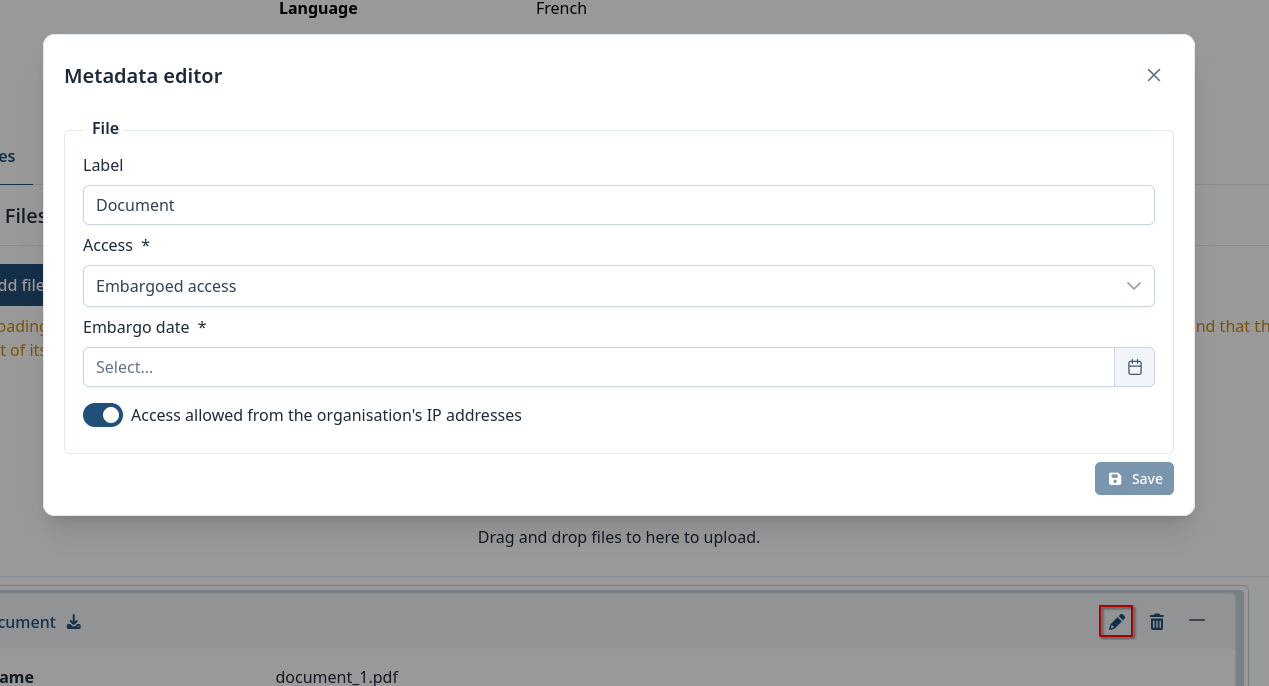
| Field | Description |
|---|---|
| Label | The label displayed below the file thumbnail. Examples: Full text, Main file, Table of contents. |
| Access | Open access (public), Embargoed access (public from a given date) or Restricted access (never public). |
| Embargo date | The date from which an embargoed file becomes public. Format YYYY-MM-DD, for example 2027-05-05. |
| Access allowed from the organisation's IP addresses | Reopens an embargoed or restricted file to users affiliated to the organisation and to visitors coming from its Allowed IP addresses. |
Embargo date and Access allowed from the organisation's IP addresses only appear once Access is set to something other than Open access, and both are then required. The date must be written YYYY-MM-DD.
Access settings apply to the file alone. They are independent from the document's Visibility field, which hides the record as a whole: see Manage documents.
Reorder files
The file in first position is the main file. Use the up and down arrows beside the file list to reorder the files.
Replace a file with a new version
Use A new version on the file panel rather than deleting and re-uploading: this preserves the file's settings, its position and its history.
Previous versions are kept. They are not displayed in the public interface, but remain accessible in the administration interface, where Preview shows an earlier version.
Delete a file
Click on the file panel, then confirm. This removes the file and all of its previous versions.
What you cannot do
A PDF on a document holding a URN can no longer be replaced or deleted. A URN identifies that exact file, and it is never released once reserved — whether or not it has already been registered with the DNB. Add a new file alongside it instead. The same rule prevents the document itself from being deleted, even by an administrator.
Full-text extraction cannot be triggered by hand. It runs on upload. If a PDF is not searchable by its content, it most likely has no text layer — a scan that was never passed through OCR — and re-uploading it will not change that.